


How to Enable and Use TikFinity in +1 Speed Keyboard Escape Roblox Guide
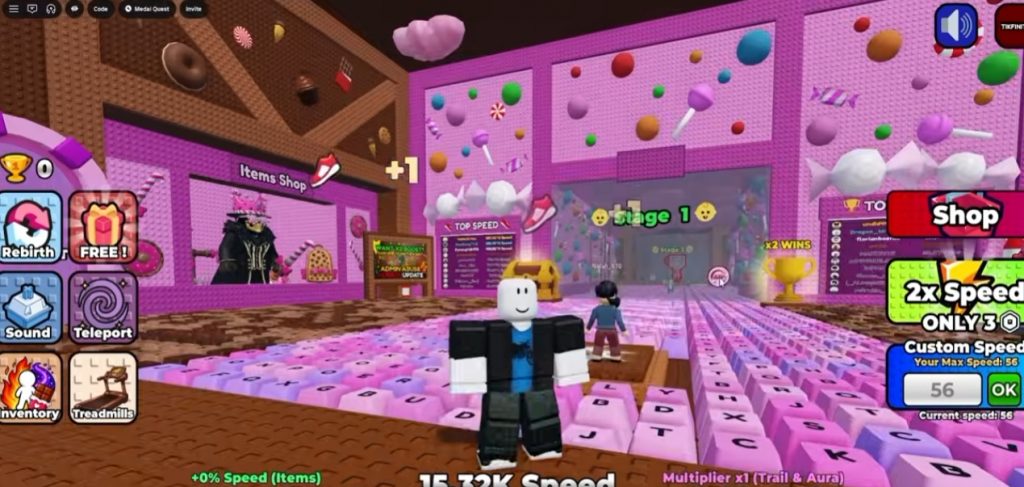
TikFinity is a feature available in +1 Speed Keyboard Escape that lets you trigger fun in-game effects using keyboard shortcuts. Once enabled, you can perform actions like transforming into a chicken, slipping on a banana peel, exploding your character, or even trapping yourself inside a jail cell. If you’re new to TikFinity or don’t know how to activate it, this guide explains how to enable the feature, customize your keybinds, and use the available commands.
What Is TikFinity?
TikFinity is a keyboard shortcut system that allows players to activate special effects by pressing specific keys. Instead of using menus or buttons, you simply press the assigned key to trigger an action instantly. The feature is mainly used for fun gameplay and lets you experiment with different character effects while playing. Some effects are purely cosmetic, while others temporarily change your movement or character.
How to Enable TikFinity
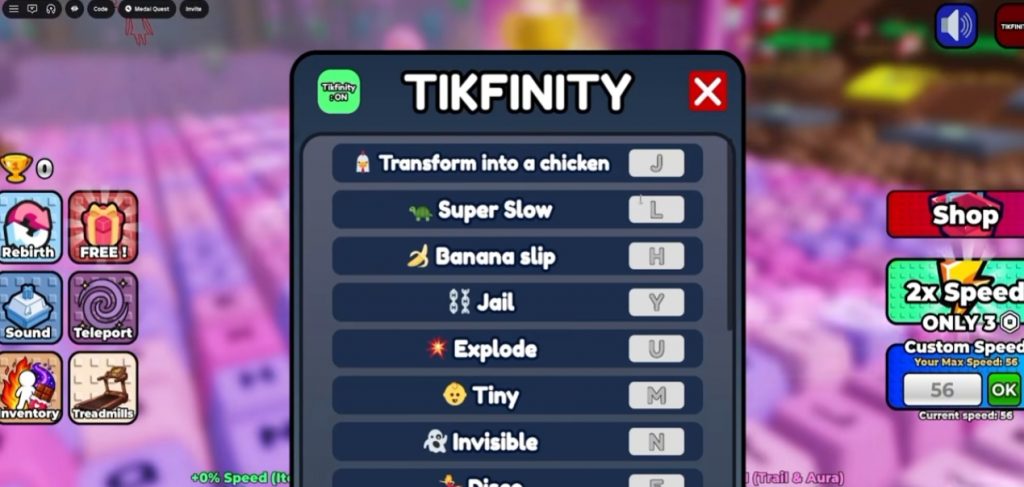
Enabling TikFinity only takes a few steps.
- Launch +1 Speed Keyboard Escape in Roblox.
- Open the TikFinity settings menu.
- Find the TikFinity toggle.
- Switch it from Off to On.
Once the feature is enabled, the available keyboard shortcuts will appear on your screen.
You can now press the assigned keys to activate each effect.
Default TikFinity Controls
After enabling TikFinity, several actions become available by default.
- J – Transform into a Chicken Pressing J changes your character into a chicken. This is one of the funniest effects available and is great for trolling friends or simply having fun during gameplay.
- L – Slow Movement If you press L, your character’s movement speed becomes much slower than normal. This effect can make obstacle courses more challenging or simply create funny moments.
- H – Banana Slip The H key activates the Banana Slip effect. Your character will repeatedly slip across the ground, making movement difficult until the animation finishes.
- Y – Jail Yourself Press Y to place your character inside a jail cell. This doesn’t permanently trap your character, but it creates a humorous visual effect that can surprise other players.
- U – Explode Pressing U causes your character to explode instantly. This is one of the quickest ways to reset your character while also triggering a fun animation.
How to Change Keybinds
One of TikFinity’s best features is the ability to customize every shortcut. To change a key:
- Open the TikFinity menu.
- Select the action you want to edit.
- Click on the current key assignment.
- Press your preferred keyboard key.
- Save the new shortcut.
After saving, the new key will activate that effect instead of the original one.
For example, you can change the explosion shortcut from U to Q or assign any other key that feels more comfortable.
Tips for Using TikFinity
Before changing all your controls, it’s a good idea to keep frequently used effects on keys that are easy to reach. Avoid assigning multiple actions to keys you commonly use for movement, as this can trigger effects by accident.
If you’re playing with friends, TikFinity can make races and obstacle courses much more entertaining since everyone can activate different effects during gameplay. Since every action can be customized, you can create a layout that matches your own playstyle.
TikFinity adds an extra layer of fun to +1 Speed Keyboard Escape by letting players activate special effects with simple keyboard shortcuts. Whether you want to transform into a chicken, trigger a banana slip, explode your character, or experiment with custom keybinds, the feature is easy to enable and customize. Spend a few minutes setting up your preferred controls, and you’ll be able to enjoy all of TikFinity’s unique effects during your next Roblox session.
+1 Speed Keyboard Escape