


How to Play Monster Hunter Outlanders on PC, Best FPS and Performance!
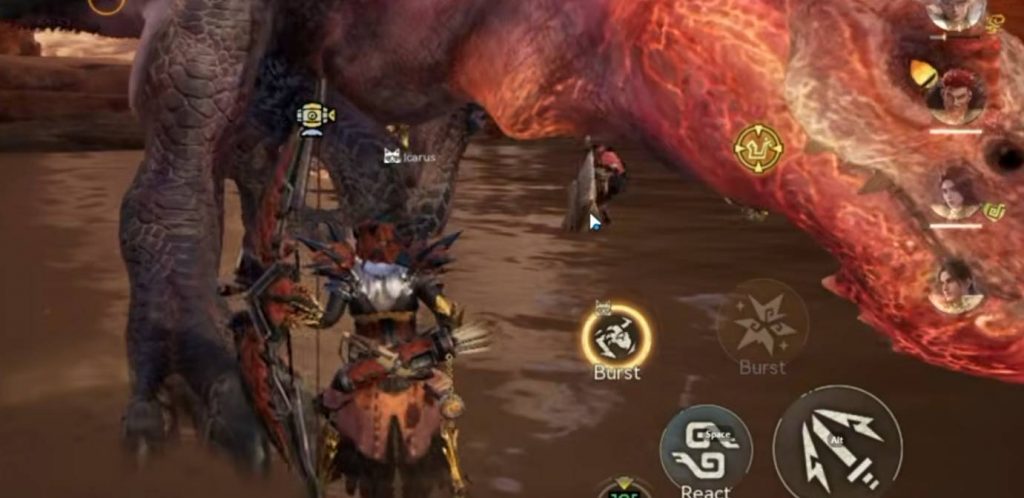
Monster Hunter Outlanders is an action RPG where smooth performance is important, especially when fighting powerful monsters. Although the game is designed for mobile devices, PC players can also enjoy it by using an Android emulator. One option worth trying is LDPlayer 9, which offers keyboard and mouse controls along with several graphics settings.
Among the three emulators tested, LDPlayer 9 provided the best overall experience. It supports higher graphics options, automatically sets up keyboard controls, and can reach around 60 FPS. However, some frame drops may still happen during combat, depending on your PC specifications.
Why Choose LDPlayer 9 for Monster Hunter Outlanders?
LDPlayer 9 is a good choice for playing Monster Hunter Outlanders on PC because it offers a more convenient setup and better results than the other emulators tested. Unlike BlueStacks 16, which had limited graphics options and frequent freezes, LDPlayer 9 allowed the game to use Very High graphics settings and reach around 60 FPS during the test.
Another advantage is its automatic keyboard mapping feature. Once Monster Hunter Outlanders was installed, LDPlayer 9 provided a ready-to-use control layout without requiring players to configure every button manually. You can also adjust mouse sensitivity to make camera movement more responsive, which is useful when targeting monsters during combat.
Although LDPlayer 9 still experiences frame drops in certain situations, it delivered the best overall experience compared to BlueStacks 16 and MuMu Player 15. For players who want to enjoy Monster Hunter Outlanders with a keyboard and mouse, LDPlayer 9 is the emulator worth trying first.
1. Download and Install LDPlayer 9
The first step is to install LDPlayer 9 on your PC. Make sure you download the emulator from its official website and complete the installation process before launching it. Once LDPlayer is ready, open the emulator and access its built-in app store or another supported method to install Monster Hunter Outlanders.
LDPlayer 9 was the best option in the performance test because it automatically provided keyboard mapping after the game was installed. This means you do not need to spend much time setting up every control manually. It also offers a more convenient starting point for players who want to use a keyboard and mouse.
After installing the game, you can adjust the emulator settings to match your PC. During the test, the recommended CPU configuration was used instead of manually assigning a different number of cores. This is a good starting point if you are unsure how much processing power your PC should allocate to the emulator.
The device model was set to Vivo iQOO 12 Pro. Changing it to an ROG gaming phone did not provide a major performance improvement, so there was no clear reason to use a different profile. You can start with the recommended configuration and adjust it later if the game does not run well on your system.
Set Monster Hunter Outlanders Graphics to Very High
One advantage of LDPlayer 9 is that Monster Hunter Outlanders provides access to higher graphics options. During the test, the game could use the Very High setting and reach around 60 FPS. This gave it an advantage over BlueStacks 16 and MuMu Player 15, which had more noticeable limitations.
However, choosing higher graphics does not guarantee stable performance on every PC. Frame drops were still noticeable during monster battles and when entering crowded villages with many players. If your PC struggles to maintain a stable frame rate, try lowering the graphics settings until the gameplay feels more comfortable.
Adjust Keyboard and Mouse Controls
LDPlayer 9 automatically provides keyboard mapping after installing Monster Hunter Outlanders. This makes it easier to control your character, move around the map, and fight monsters without having to assign every button yourself.
You can still customize the controls if the default layout does not match your preferences. One useful adjustment is mouse sensitivity, especially when rotating the camera after the cursor is hidden. Open the keyboard control settings and increase the sensitivity to make camera movement more responsive.
In the performance test, mouse sensitivity was increased to 49. This made camera rotation feel better during gameplay. You can use the same value as a starting point, then adjust it depending on how quickly you want the camera to move.
How Well Does Monster Hunter Outlanders Run on LDPlayer 9?
LDPlayer 9 delivered the best results among the three emulators tested, with graphics options reaching Very High and performance around 60 FPS. Its automatic keyboard mapping also made the setup process much easier. These features make it a suitable choice for players who prefer using a PC instead of playing directly on a phone.
However, the emulator still has some performance issues. During intense monster fights, the frame rate can drop and cause noticeable stuttering. The same problem may appear in crowded village areas, where several players are present at the same time.
Your PC hardware can also affect the final results. A system with a stronger processor, sufficient RAM, and a capable graphics card may handle the game better. If you experience frequent stuttering, lowering the graphics quality or adjusting the emulator configuration may help.
Tips for Getting More Stable FPS on LDPlayer 9
If Monster Hunter Outlanders does not run smoothly on your PC, there are several things you can try before changing emulators. The goal is to find a balance between visual quality and stable performance rather than simply using the highest settings available.
Here are some tips to try:
- Use recommended CPU settings: Start with LDPlayer’s recommended configuration instead of assigning too many CPU cores manually.
- Adjust graphics quality: Try lowering the graphics settings if Very High causes frequent frame drops.
- Close background applications: Freeing up system resources can help the emulator run more consistently.
- Customize mouse sensitivity: Adjust the camera sensitivity through the keyboard control settings to make aiming and camera movement more comfortable.
- Check your PC temperature: High temperatures can affect system performance during longer gaming sessions.
- Keep LDPlayer updated: Use a supported and updated emulator version to avoid problems caused by older software.
These adjustments may improve your experience, but the final performance will still depend on your PC hardware and the game’s optimization.
LDPlayer 9 is a good option for playing Monster Hunter Outlanders on PC if you prefer keyboard and mouse controls. It offers automatic key mapping, access to higher graphics settings, and performance that reached around 60 FPS during the test.
However, it is not completely free from stuttering. Frame drops can still happen during monster battles and in crowded areas, so you may need to lower some settings to get more stable gameplay. If your PC can handle the emulator properly, LDPlayer 9 is worth trying for a more convenient Monster Hunter Outlanders experience.
Monster Hunter Outlanders